 Stockfoto · Pexels
Device guides
IPTV on LG webOS: Find an App and Set It Up on Your TV

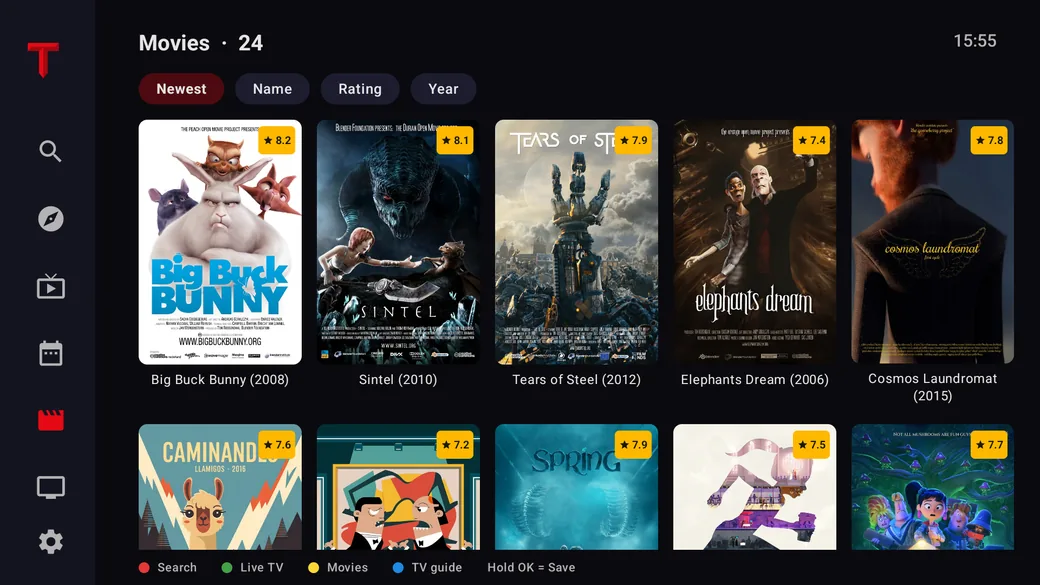
IPTV player · our recommendation
Recommended: TELOS
Your own playlist on LG TV: live TV, films and series together in one app.
- Connect your own M3U playlist or Xtream account.
- Live TV and a programme guide when your source supplies EPG.
- Browse films and series from your own catalogue.
Check model support and platform features. Manufacturer information, not a comparative playback test. No channels or subscriptions included.
On this page
Start with webOS and your exact model
A video shows how to install an IPTV app on Android, but your LG TV has completely different menus. That is a good reason to identify the platform first. For an LG TV running webOS, you need the installation steps for that device and an app it supports.
Note the model name and software version from the device information. LG’s guide distinguishes installation steps by webOS generation. A guide for a TV of a similar size may show different menus. Q1
Search the app selection for your model
Open the Apps or LG Content Store available on your model and search for the app. Check its name and publisher on the details page before installing. The manufacturer’s help explains how to search, install, and remove apps in the relevant system. Q1
If you do not know the exact app name, first ask your TV service which app it recommends. A search for “IPTV” can return different players and services. Do not choose the first icon that looks similar.
If you cannot find the app
Compare the model and region information with the app’s official support details. The linked general LG help does not confirm that a specific IPTV app is available for a US device. It explains the installation process; actual availability depends on what your TV offers and what the publisher supports.
Instructions for another operating system do not resolve that question. Before buying an add-on device, check that it supports the app you want. For a Fire TV option, see IPTV on Fire TV.
The app is open: now check access carefully
Sign in according to the app’s instructions. Separate three possible outcomes: the app will not start, sign-in fails, or selected content will not play. Each calls for a different kind of help.
If you compare another player, keep the device, network, and authorized source as similar as possible. Otherwise, you cannot tell which difference may have helped. Also check whether your service allows simultaneous use before running comparisons at the same time.
When the TV is only part of the answer
Installing a player does not automatically include a content subscription. Check the cost, access, and device support separately. This is especially useful when an offer promotes an app license but you are really looking for specific shows.
For a Windows comparison, see IPTV on a PC with VLC. For playback that keeps stalling, use the buffering troubleshooting guide.
Updated October 22, 2026. Based on the linked manufacturer help; no hands-on device testing. The image is an AI-generated illustration.
Sources and access dates
- Q1: Install and Remove Apps on LG webOS
Oct 22, 2026 · Manufacturer instructions describe app and Content Store steps that vary by version; general European support information does not establish app availability for a US device.