 Stockfoto · Pexels
Device guides
IPTV on a Fire TV Stick: choose the right app, model, and access

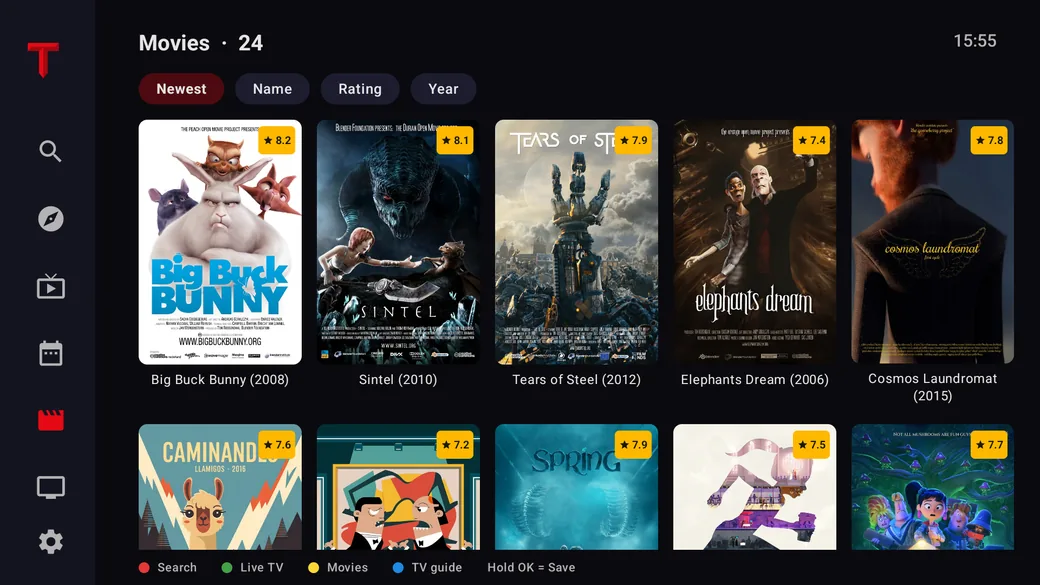
IPTV player · our recommendation
Recommended: TELOS
Your own playlist on Fire TV Stick: live TV, films and series together in one app.
- Connect your own M3U playlist or Xtream account.
- Live TV and a programme guide when your source supplies EPG.
- Browse films and series from your own catalogue.
Check model support and platform features. Manufacturer information, not a comparative playback test. No channels or subscriptions included.
On this page
An IPTV app does not provide a TV package by itself
Want to watch TV on a Fire TV Stick and finding guides for different players? Start with the service you intend to use. Do you need a service’s official app, or a playback app for access you already have and are authorized to use? That is the key question before installing anything.
The basics of players and TV services explain the difference. This guide covers the next step on the device itself.
Identify the full Stick model
Write down the device name and operating system. “Fire TV Stick” alone does not tell you every technical detail. For example, Amazon documents the Fire TV Stick 4K Select as a device for Vega apps. A guide for a different app platform therefore does not automatically establish support for this model. Q1
That distinction is useful in practice: if someone recommends an Android file, first check whether the instructions apply to your device at all. You do not need to enable developer options or try a file from an unknown source just to look for an ordinary store app.
Look for the app in the device’s app catalog
Search for the exact app name and check its publisher. Then compare the model requirements on the official app or developer page with your Stick. If the app is unavailable, check with its publisher about support before paying for a player.
If the Stick is not set up yet, the setup guide covers the connection and sign-in. A configured Amazon interface does not mean you are signed in to the TV service you want. Q2
Finish the first launch with a clear test
After signing in, open content included with your access. Test playback, back navigation, and the remote. If something goes wrong, note the app version, device model, and message. Do not change the player, access details, and network at the same time or you will lose a useful comparison.
Do not enter a private playlist address or sign-in details on public help pages. If a provider lists device restrictions, include them in your checks. A working player does not, by itself, establish rights to a particular channel.
If something is missing or stuttering
If the app is missing, confirm model compatibility. If there is no picture, start with HDMI troubleshooting. If a program starts but stutters, use the buffering guide. This keeps the next step tied to the problem you can actually observe.
Updated: October 22, 2026. Based on the linked manufacturer help; no hands-on device testing was performed. The image is an AI-generated illustration.
Sources and access dates
- Q1: Amazon Vega documentation for Fire TV
Oct 22, 2026 · Documents Vega apps and Fire TV Stick 4K Select as a separate development target; does not establish blanket Android compatibility.
- Q2: Set up an Amazon Fire TV Stick
Oct 22, 2026 · HDMI, included power supply, Wi-Fi, and Amazon sign-in; account for model-specific differences.